1
Download Yeelight App and sign in to your account. Click "Device" icon on the lower-right corner.
2
Click the "+" on the upper right to add device.
3
Select the device you would like to add. This instruction uses Yeelight LED Bulb (White) as an example.
4
Follow the instruction on screen to reset your device.
5
Select the 2.4G Wi-Fi network to be connected with and enter the password.
6
Go to WiFi setting.
7
Select the Wi-Fi network titled with "yeelink-light-" on the Wi-Fi network list and then go back to Yeelight App.
8
Wait for the device to be successfully connected.
9
You may rename the bulb or assign the bulb to a room.
10
Turn on LAN Control for faster device response under local network. LAN Control also allows you to use Google Home Local Execution.
11
The Bulb has been successfully added! Explore what you can do with it!
Frequently Asked Questions (FAQ)
Can I connect my device to a 5GHz Wi-Fi network?
No, Yeelight smart devices currently only support 2.4GHz Wi-Fi networks. Please ensure your smartphone is connected to a 2.4GHz network during setup.
What should I do if the Yeelight App cannot find my device?
Ensure your device is reset properly (usually by switching it on and off 5 times, or following its specific reset guide) until it flashes. Check that your Wi-Fi password is correct and your Wi-Fi signal is strong enough.
How do I reset my Yeelight LED Bulb?
Turn the light bulb on and off 5 times sequentially with 2-second intervals. After turning it on the 5th time, the bulb will flash or pulse for a few seconds, indicating that it has successfully reset.
What is the "yeelink-light-" Wi-Fi network?
This is the temporary Access Point (AP) hotspot broadcasted by the smart device during the AP pairing mode. Connecting your phone to this hotspot allows the app to configure the device with your local network settings.
Why should I turn on LAN Control?
LAN Control enables direct communication between your control device and the smart light inside your local network. This significantly reduces command latency and allows integration with systems like Home Assistant or Google Home Local Execution.
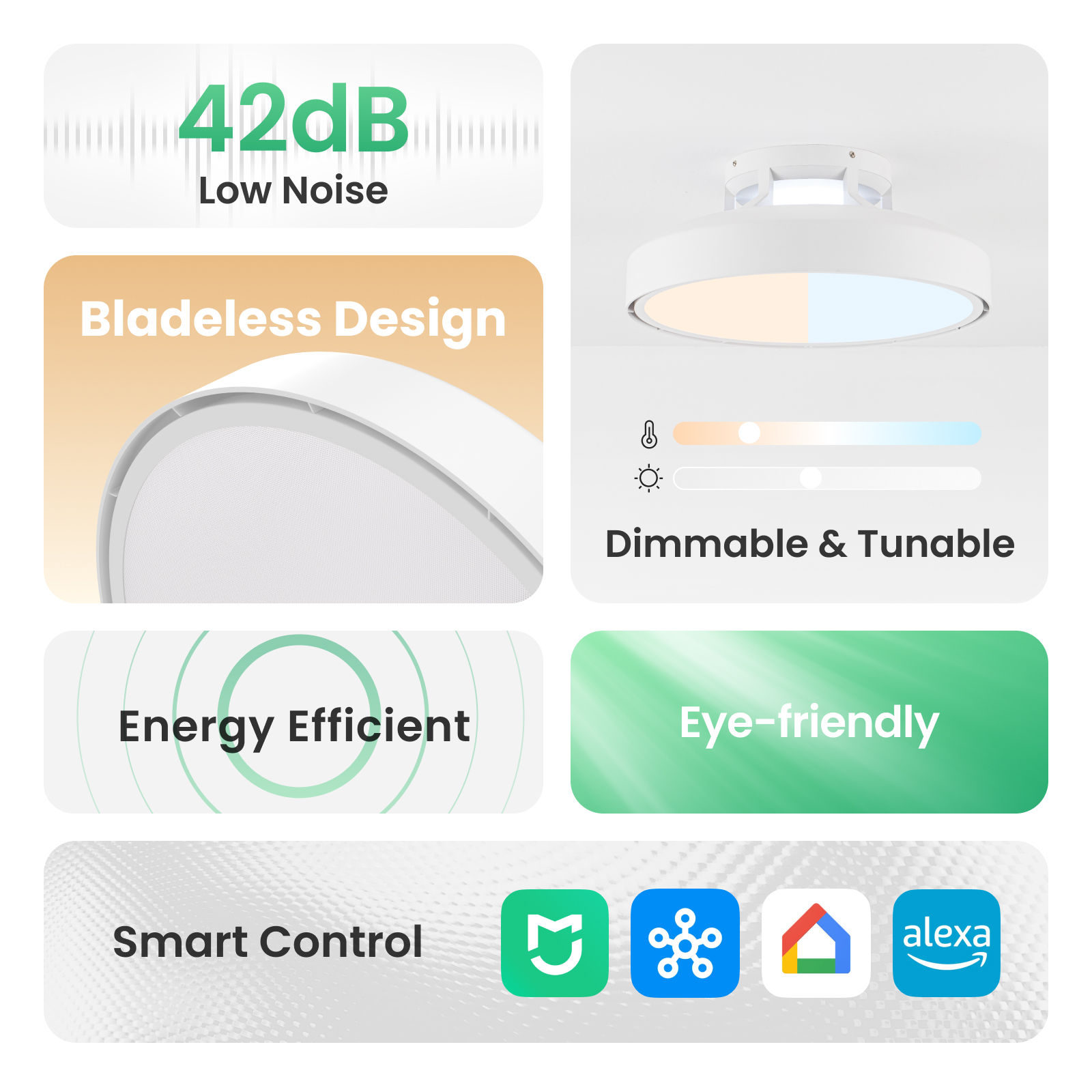
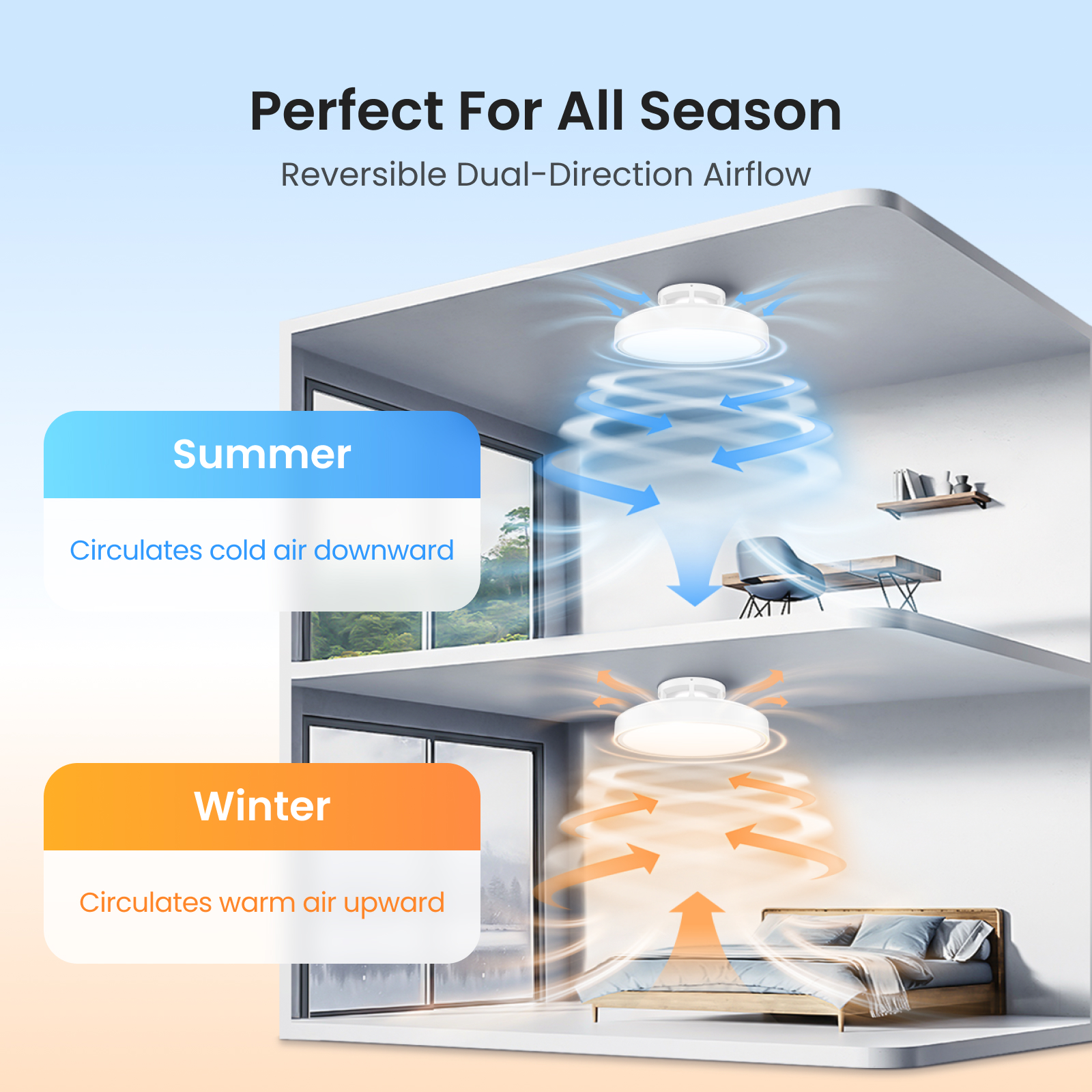
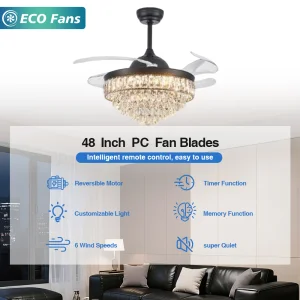
 Fanpro Light